1 / 9
+4
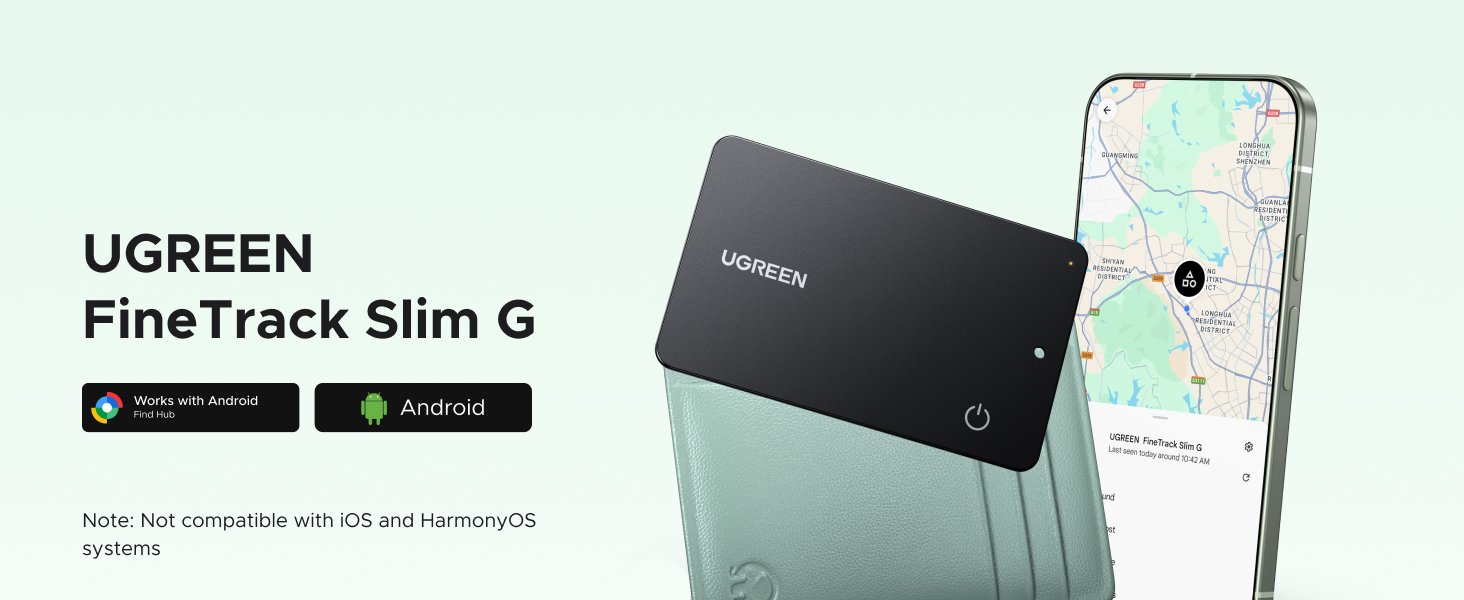
UGREEN FineTrack Slim G Smart Finder (Android Only)
Previous page
Next page
Previous page
Next page
Previous page
Next page
| Connection Guide | How do I successfully connect my phone to the tracker? |
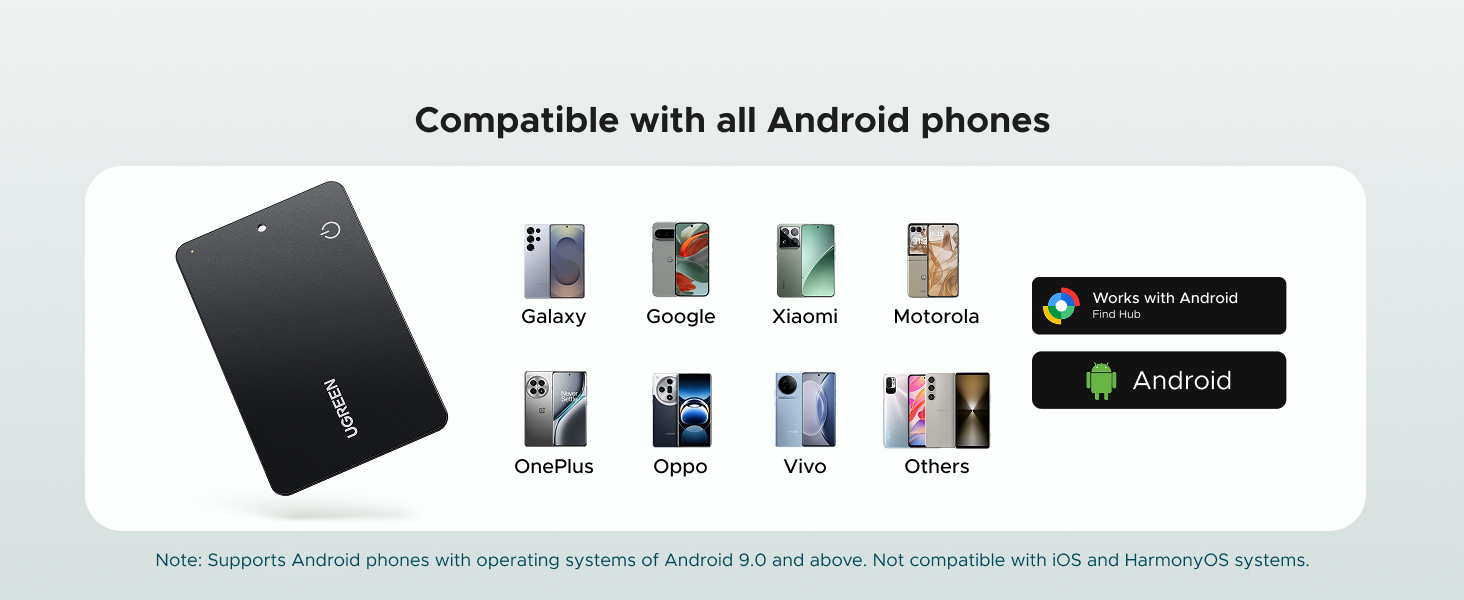
| 1. | Please make sure your Android phone supports Android 9.0 or above. |
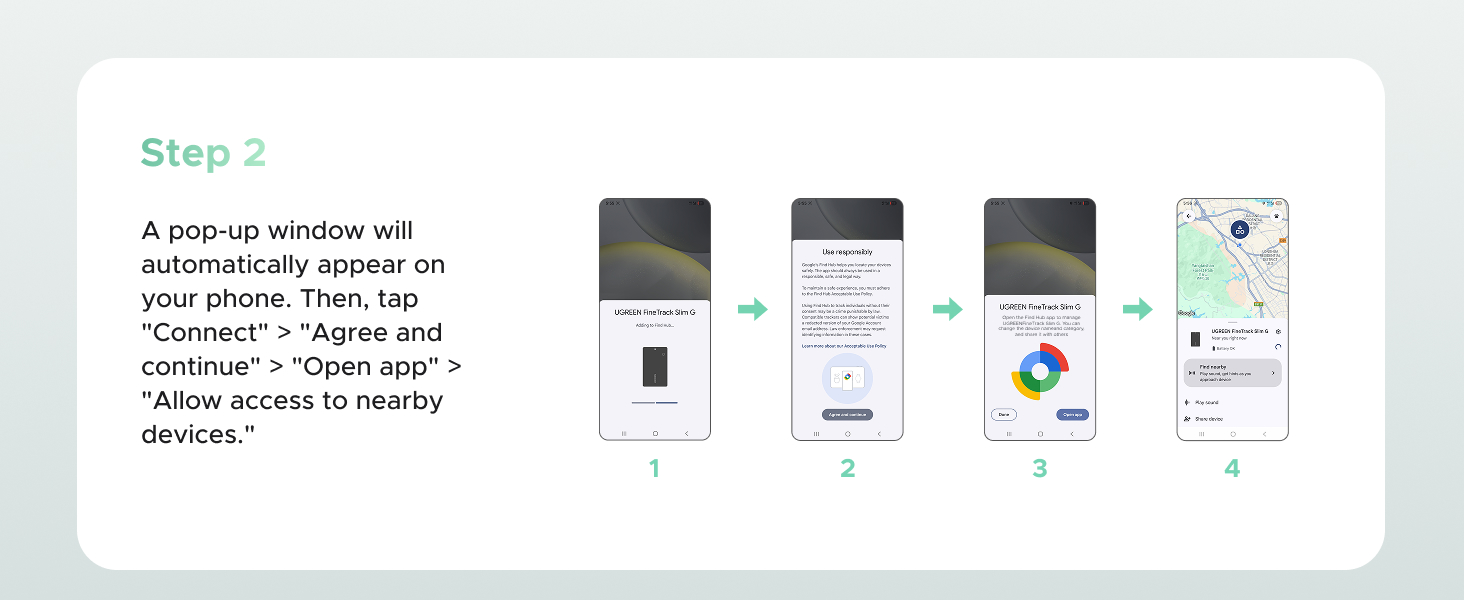
| 2. | To ensure the pop-up appears correctly on your Android phone, please make sure your Google Play Services and Google Find Hub are updated to the latest versions. |
| 3. | What should I do if the tracker still can't connect after the pop-up appears? |
| A. If you accidentally exit the pop-up screen after the pop-up appears, please wait for the next pop-up, or wait 5 minutes or restart your phone before the pop-up appears again. | |
| B. Click "Close" after the pop-up appears. This will prevent the pop-up from appearing again. You will need to wait 5 minutes or restart your phone before the pop-up appears again. | |
| C. On some phones, the pop-up may appear normally for a while but then suddenly stop. Even if waiting 5 minutes doesn't work, restarting the phone may restore the connection. | |
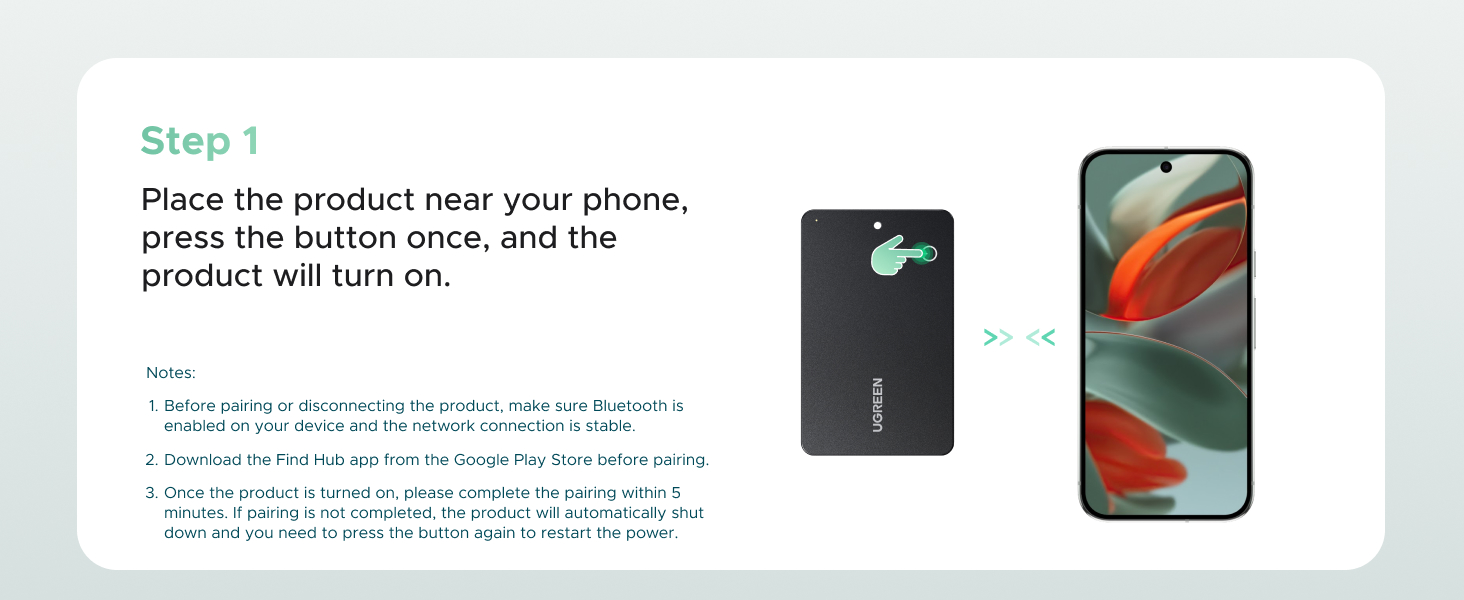
| Quick Operation Guide | Power On: Press the button once to power on. You will hear four consecutive "di" prompts (power indicator flashes). |
| Shut Down: Double-press the button twice, then hold it for 5 seconds until you hear a "di" sound. Release to hear two "di" prompts, indicating successful shutdown. First-time Power On: Automatically shuts down after 5 minutes if no binding record exists. | |
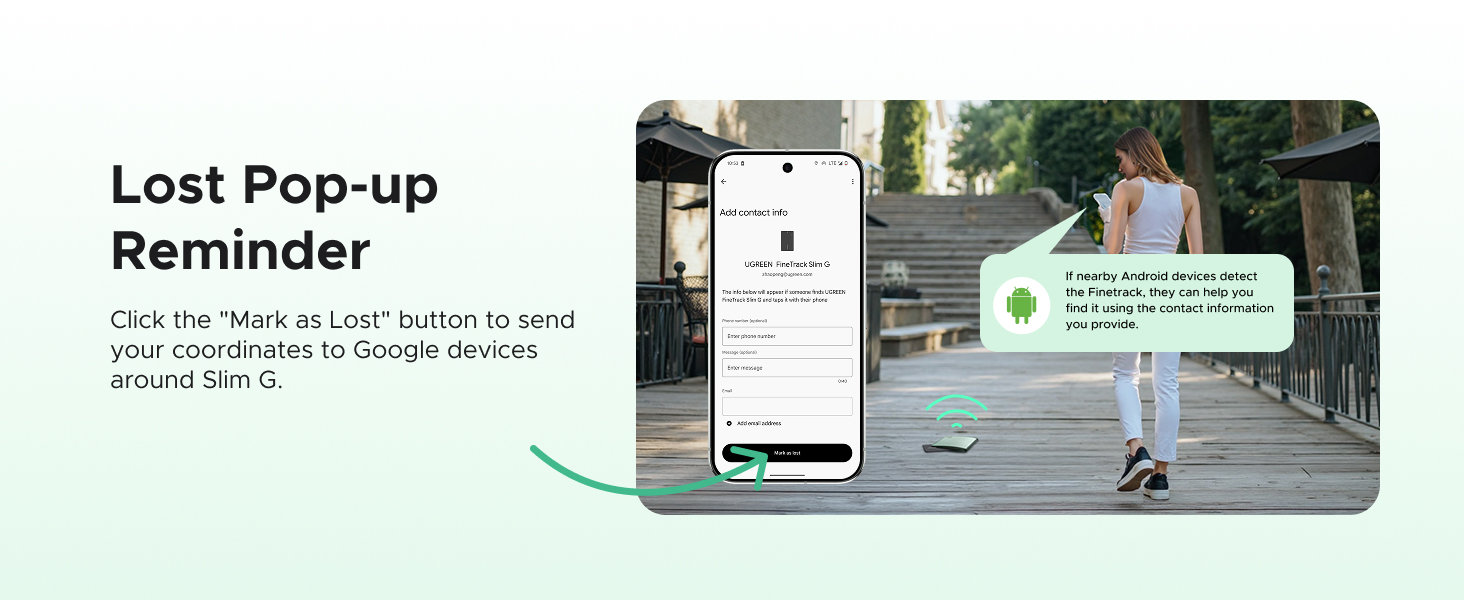
| Pairing: Android phones will receive a pop-up pairing prompt. Select "Pair," then follow instructions to click "Accept & Continue." | |
| Successful Pairing: Continuous "di-di-di" prompts indicate successful connection. | |
| Factory Reset: | 1)Double-press the button twice to hear one "di" prompt. 2)Hold the button for 5 seconds until you hear a "di" every second. 3)Continue holding until two "di" prompts sound, then release. 4) "di" prompts confirm successful reset. |
| Incompatible Device List | Note: Due to the recent Google system update, some phones (Motorola Moto G Stylus 5G, Motorola Edge, TCL 30XL, TCL 30Z, Google Pixel 8) may experience temporary incompatibility. We are working on optimization and will update the compatibility list once resolved. |
Previous page
Next page
Previous page
Next page
Previous page
Next page
| Connection Guide | How do I successfully connect my phone to the tracker? |
| 1. | Please make sure your Android phone supports Android 9.0 or above. |
| 2. | To ensure the pop-up appears correctly on your Android phone, please make sure your Google Play Services and Google Find Hub are updated to the latest versions. |
| 3. | What should I do if the tracker still can't connect after the pop-up appears? |
| A. If you accidentally exit the pop-up screen after the pop-up appears, please wait for the next pop-up, or wait 5 minutes or restart your phone before the pop-up appears again. | |
| B. Click "Close" after the pop-up appears. This will prevent the pop-up from appearing again. You will need to wait 5 minutes or restart your phone before the pop-up appears again. | |
| C. On some phones, the pop-up may appear normally for a while but then suddenly stop. Even if waiting 5 minutes doesn't work, restarting the phone may restore the connection. | |
| Quick Operation Guide | Power On: Press the button once to power on. You will hear four consecutive "di" prompts (power indicator flashes). |
| Shut Down: Double-press the button twice, then hold it for 5 seconds until you hear a "di" sound. Release to hear two "di" prompts, indicating successful shutdown. First-time Power On: Automatically shuts down after 5 minutes if no binding record exists. | |
| Pairing: Android phones will receive a pop-up pairing prompt. Select "Pair," then follow instructions to click "Accept & Continue." | |
| Successful Pairing: Continuous "di-di-di" prompts indicate successful connection. | |
| Factory Reset: | 1)Double-press the button twice to hear one "di" prompt. 2)Hold the button for 5 seconds until you hear a "di" every second. 3)Continue holding until two "di" prompts sound, then release. 4) "di" prompts confirm successful reset. |
| Incompatible Device List | Note: Due to the recent Google system update, some phones (Motorola Moto G Stylus 5G, Motorola Edge, TCL 30XL, TCL 30Z, Google Pixel 8) may experience temporary incompatibility. We are working on optimization and will update the compatibility list once resolved. |
$10.50
Original: $29.99
-65%UGREEN FineTrack Slim G Smart Finder (Android Only)—
$29.99
$10.50Description
Previous page
Next page
Previous page
Next page
Previous page
Next page
| Connection Guide | How do I successfully connect my phone to the tracker? |
| 1. | Please make sure your Android phone supports Android 9.0 or above. |
| 2. | To ensure the pop-up appears correctly on your Android phone, please make sure your Google Play Services and Google Find Hub are updated to the latest versions. |
| 3. | What should I do if the tracker still can't connect after the pop-up appears? |
| A. If you accidentally exit the pop-up screen after the pop-up appears, please wait for the next pop-up, or wait 5 minutes or restart your phone before the pop-up appears again. | |
| B. Click "Close" after the pop-up appears. This will prevent the pop-up from appearing again. You will need to wait 5 minutes or restart your phone before the pop-up appears again. | |
| C. On some phones, the pop-up may appear normally for a while but then suddenly stop. Even if waiting 5 minutes doesn't work, restarting the phone may restore the connection. | |
| Quick Operation Guide | Power On: Press the button once to power on. You will hear four consecutive "di" prompts (power indicator flashes). |
| Shut Down: Double-press the button twice, then hold it for 5 seconds until you hear a "di" sound. Release to hear two "di" prompts, indicating successful shutdown. First-time Power On: Automatically shuts down after 5 minutes if no binding record exists. | |
| Pairing: Android phones will receive a pop-up pairing prompt. Select "Pair," then follow instructions to click "Accept & Continue." | |
| Successful Pairing: Continuous "di-di-di" prompts indicate successful connection. | |
| Factory Reset: | 1)Double-press the button twice to hear one "di" prompt. 2)Hold the button for 5 seconds until you hear a "di" every second. 3)Continue holding until two "di" prompts sound, then release. 4) "di" prompts confirm successful reset. |
| Incompatible Device List | Note: Due to the recent Google system update, some phones (Motorola Moto G Stylus 5G, Motorola Edge, TCL 30XL, TCL 30Z, Google Pixel 8) may experience temporary incompatibility. We are working on optimization and will update the compatibility list once resolved. |